 Ledger
How to Connect Etsy to QuickBooks Online
A practical setup guide for Etsy sellers, with a first-payout checklist to catch missing fees, import overlap, and duplicate sales.
By Nasir Khan · October 25, 2026 · 7 min read

To connect Etsy to QuickBooks Online, find Etsy Connector by Intuit in QuickBooks integrations, authorize your Etsy shop, complete the account mappings, and choose an import start date. Then review imported activity and match the payout to your bank deposit. Connecting the shop is only the first step: checking the records prevents the same sale from appearing twice.
This guide follows Intuit's QuickBooks Online documentation and focuses on a US small-business seller's bookkeeping workflow. It is not a QuickBooks Self-Employed tutorial. Menu names, availability, and app terms can change; check the current connector listing in your account before starting.
Before you connect: check what is already in your books
- Have access to the correct QuickBooks Online company and the Etsy account that owns the shop. Authorize access only through the official app flow.
- Confirm the bank account that receives Etsy deposits and any account or card used to pay Etsy charges exist in QuickBooks.
- Download your Etsy Payment account statement for the period you intend to import and keep the matching bank statement.
- Identify sales already entered manually, imported from another app, or recorded by categorizing bank deposits as income. Note the last period your bookkeeper has finished.
- Check the connector's current listing for availability, terms, and any costs. Do not assume every plan or region has identical access.
If you are setting up QuickBooks for the first time, complete the business and bank-account basics in our QuickBooks Online beginner tutorial. Review your chart of accounts before choosing mappings rather than creating a new category for every order.
Step 1: Find Etsy Connector by Intuit
In QuickBooks Online, open Integrations → Find integrations, search for Etsy Connector by Intuit, and select Get app now. These are the labels in Intuit's connection guide; follow the equivalent integration menu if your screen differs. Confirm the app is the intended Intuit connector, not a different product with a similar name.
Step 2: Authorize the correct Etsy shop
When the connection flow takes you to Etsy, sign in and review the access request. Choose Grant access to authorize the connection. Check the shop and QuickBooks company before proceeding, especially if you manage more than one business. Never send your password to someone offering to connect the shop for you.
Step 3: Review income and expense mappings
Complete the connector's payment settings. Intuit identifies Use income Account and Use Expense Account as required fields. Choose accounts that reflect your existing bookkeeping structure. A sales-income account and relevant selling-fee expense accounts serve different purposes; the bank account receiving the payout is not a substitute for both.
Do not assume every deduction is the same expense
Etsy activity can include transaction fees, payment-processing charges, advertising, shipping labels, refunds, and other adjustments. Review how your connector handles each type. Ask your bookkeeper to check mappings if you already have inventory, tax, or clearing-account policies.
Step 4: Choose an import start date without overlap
Choose the start date deliberately, within the history range the connector currently offers. Start with a period whose Etsy records are available and whose existing QuickBooks entries you can review. Importing the oldest available date is not automatically the best choice.
For example, if you already recorded September's Etsy deposits as sales, importing September's orders may record that income again. Before accepting the imported activity, identify those existing entries and agree with your bookkeeper how to resolve the overlap. Do not delete reconciled transactions or change a closed period simply to make a total match.
Finish the setup and check the connector's transaction-status tabs. Review processing, imported, or excluded items as your account presents them. If no activity appears, confirm the start date and connection status before retrying or manually entering the same orders.
Step 5: Verify your first payout against Etsy and the bank
A payout is not necessarily one sale. It can combine orders, refunds, fees, and adjustments. Intuit's payout workflow uses All apps → Accounting → Integration transactions, then the connected channel and its For Review payout details. If your connection offers this workflow, use it to examine the breakdown before adding the payout.
- Select one payout and save its Etsy supporting statement. Compare the date range, sales, refunds, charges, and adjustments rather than checking only the total.
- Check whether the payout or its orders are already in QuickBooks from an earlier import or manual entry.
- Review the categories and add the payout through the documented connector workflow when it is ready.
- Open Bank transactions and match the corresponding bank deposit to the existing payout. Do not add it as a second sale.
- If you already added the deposit separately, inspect the entry first. Intuit's documented workflow calls for undoing that separately added bank entry before adding and matching the payout. Get help before changing a reconciled or closed period.
- Investigate any remaining balance using Etsy's available, pending, and reserve information. A held amount is not automatically a missing deposit or an additional fee.
A simple payout example
Suppose an illustrative payout period contains $500 of seller sales, $40 of refunds, and $60 of fees, with no opening balance, tax pass-through, reserve, or other adjustment. The resulting deposit is $400: $500 − $40 − $60. If the connector has already recorded that activity, adding the $400 bank deposit as new sales would overstate revenue. Match the deposit to the recorded payout instead.
These amounts are invented solely to explain reconciliation, not Etsy fee rates or tax rules. Real statements may contain additional items, currency conversion, or deposits covering a different period. Your accounting method also affects reporting; use our cash versus accrual guide for context, not as a replacement for professional advice.
What to do if the connection or balance looks wrong
- Connector missing: Confirm you are using QuickBooks Online and check the current app listing and Intuit guidance for your account. Self-Employed instructions are a different workflow.
- Income appears twice: Look for the same sale recorded through manual entries, another integration, or a bank deposit categorized as income. Review the overlap rather than reconnecting repeatedly.
- Deposit is smaller than sales: Check refunds, fees, shipping labels, other adjustments, pending funds, and reserves in Etsy's Payment account.
- Tax lines are confusing: Etsy may collect and remit buyer sales tax for qualifying orders under marketplace rules. Do not assume that covers every seller obligation or classify all tax lines as your expense.
- Third-party payments: Intuit notes that transactions handled through a third party such as PayPal may require manual sales and deposit records. Check coverage before assuming every payment has synced.
Keep the connection checked, not just switched on
After the first successful match, review imports regularly and reconcile the bank each month. Keep the Etsy statement with your supporting records. Our bank reconciliation guide covers the broader month-end process. The goal is one supported set of sales, expenses, and deposits—not simply an app showing Connected.
Sources and scope
Setup and transaction review follow Intuit's Etsy connection guide, Etsy import preparation, past-import adjustments, and payout review and matching.
For the platform records, consult Etsy's deposit calculation explanation, Payment account reserves, and US sales-tax guidance. This is general bookkeeping education, not individualized tax or accounting advice.
Frequently asked questions
Is connecting Etsy the same as connecting my bank?
No. A bank feed shows deposits and withdrawals. The Etsy connection can supply the underlying sales, fees, refunds, and payout activity. Review the imported records and match the bank deposit rather than recording the same income again.
Which date should I choose when importing Etsy history?
Choose a date within the connector's available range after checking which periods are already recorded. Review any overlap with manual entries, earlier integrations, or deposits categorized as income before accepting history.
Does this guide apply to QuickBooks Self-Employed?
No. It follows the QuickBooks Online Etsy connector workflow. Self-Employed and older integrations have separate documentation and may offer different features.
Why does my Etsy deposit not equal my sales?
Refunds, fees, shipping labels, other adjustments, pending funds, and reserves can affect what is available for deposit. Use the Etsy statement and payout breakdown to explain the difference.
Is the Etsy connector available on every QuickBooks plan?
Do not assume universal access. Check whether the current Etsy Connector by Intuit listing appears in your QuickBooks Online account and review its availability and terms before setting up the workflow.
Related guides
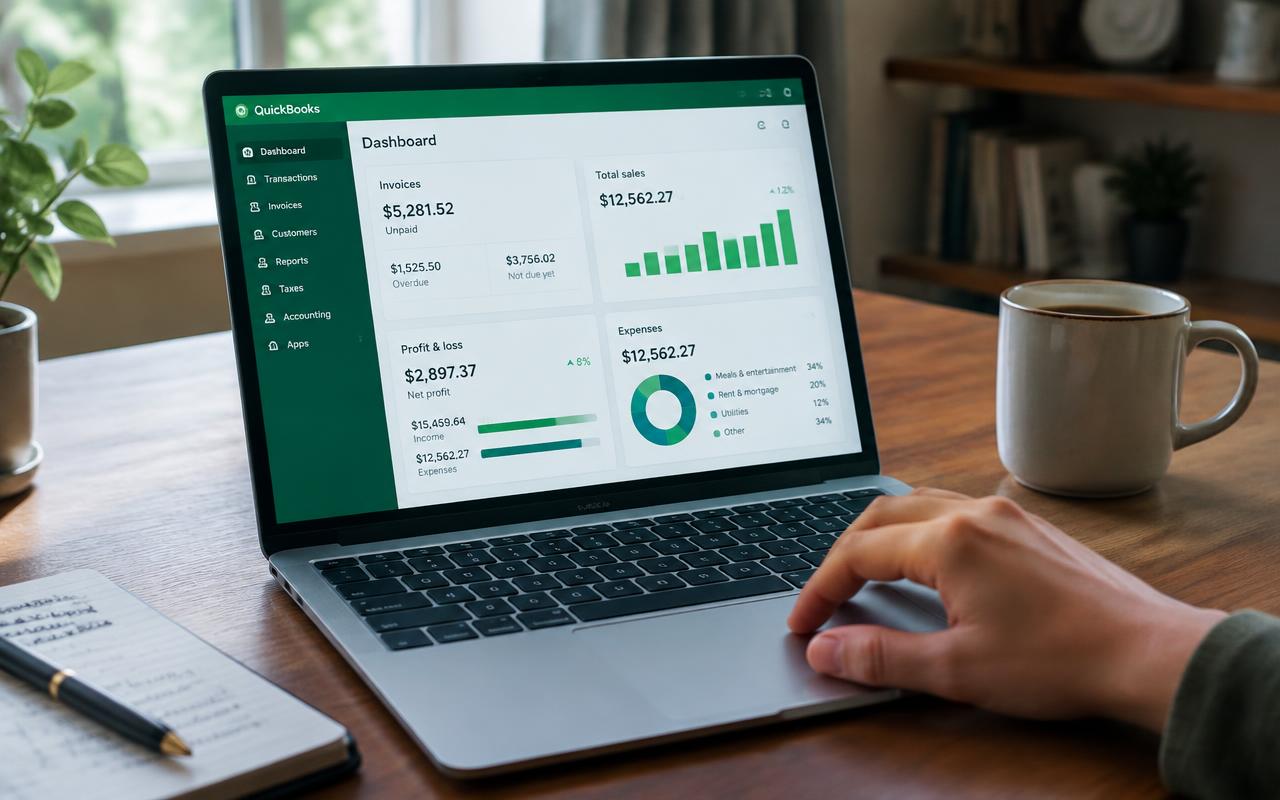
QuickBooks Online Tutorial for Beginners
New to QuickBooks Online? This step-by-step tutorial shows you how to set up your account, connect your bank, and manage your books with confidence.
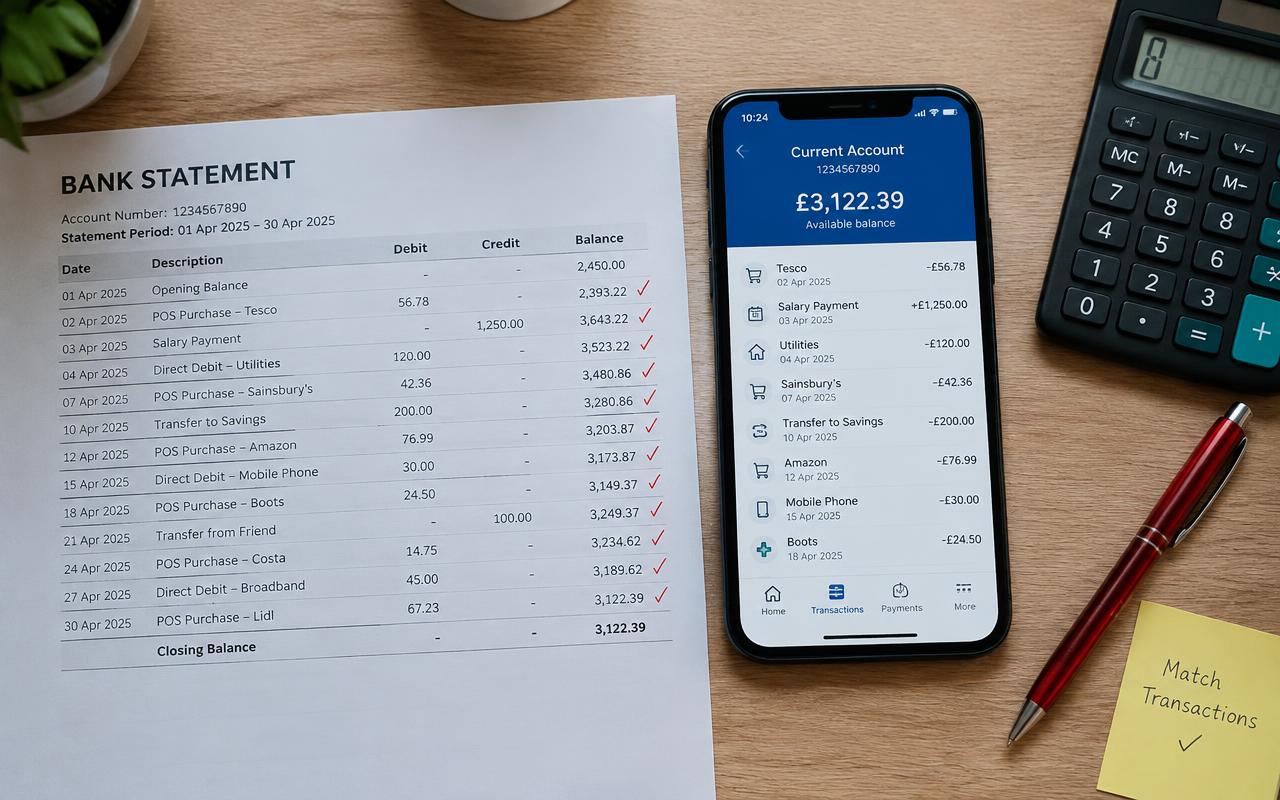
Bank Reconciliation: A Step-by-Step Guide
Bank reconciliation is the single best habit you can build to catch errors, fraud, and missing transactions before they become a real problem.

Chart of Accounts: Complete Setup Guide
A well-built chart of accounts is the backbone of accurate books. Here's how to set one up correctly from the start, with real-world examples.