QuickBooks Online Tutorial for Beginners
New to QuickBooks Online? This step-by-step tutorial shows you how to set up your account, connect your bank, and manage your books with confidence.
By Nasir Khan · August 4, 2026 · 10 min read
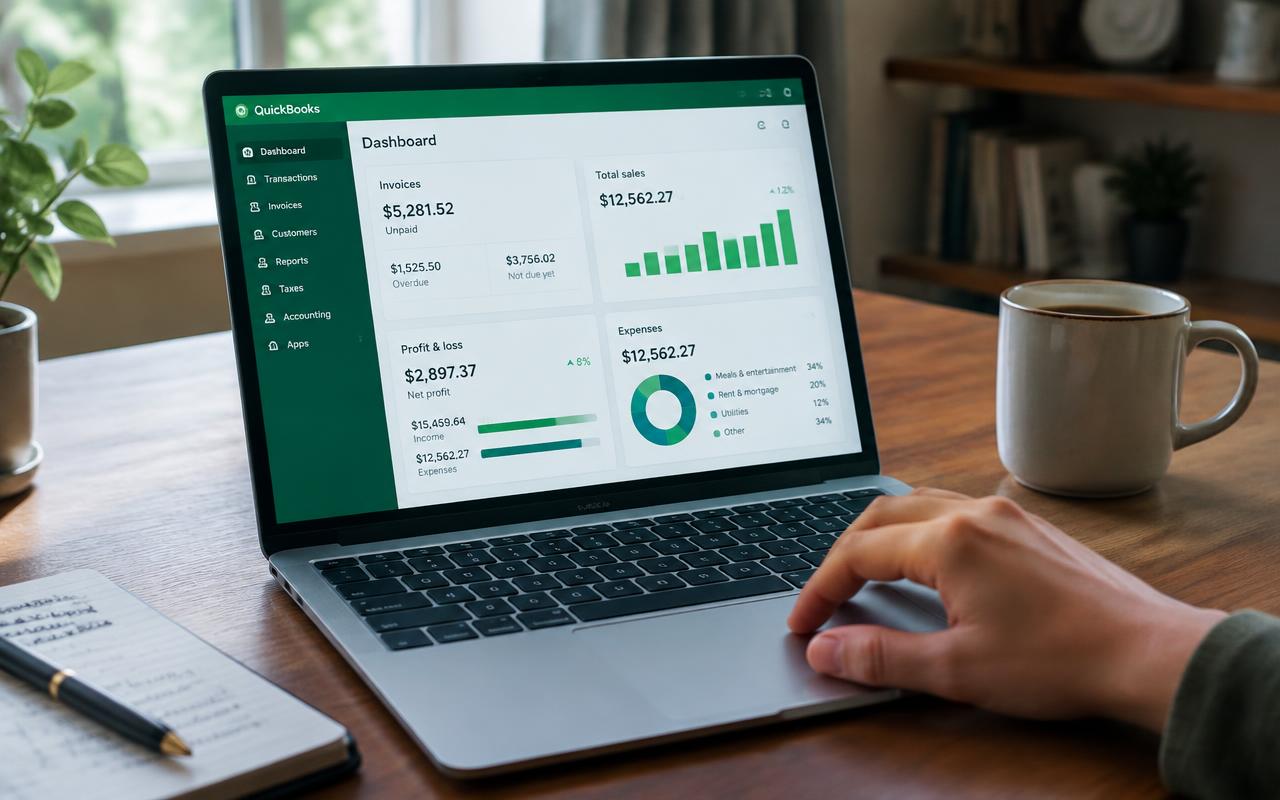
QuickBooks Online is the most widely used accounting software for small businesses in the US, and for good reason: it connects directly to your bank, automates much of the categorization work, and produces the reports lenders and accountants expect. The flip side is that the interface can feel overwhelming the first time you log in.
This tutorial walks through the essential setup steps and daily workflows so you can start using QuickBooks Online with confidence. If you're still deciding whether to handle bookkeeping yourself, our guide on how to do bookkeeping for a small business is a good starting point.
Step 1: Choose the Right Plan
QuickBooks Online offers several tiers (Simple Start, Essentials, Plus, and Advanced). Most sole proprietors and very small businesses do fine on Simple Start or Essentials. Plus adds inventory tracking and project profitability, which matters if you sell physical products or run job-based work. Don't overpay for features you won't use in year one; you can upgrade later as you grow.
Step 2: Complete the Initial Setup
When you first log in, QuickBooks walks you through a setup wizard. Take your time here, because these choices shape your books going forward.
- Enter your business name, industry, and entity type (sole proprietor, LLC, S-corp, etc.)
- Set your fiscal year start month
- Choose cash or accrual basis — see our cash vs. accrual accounting guide if you're unsure which fits your business
- Review and customize the default chart of accounts QuickBooks creates for your industry
The default chart of accounts is a good starting point, but you'll likely want to tailor it. See our chart of accounts setup guide for how to structure accounts that actually match how you want to see your numbers.
Invite Your Accountant or Bookkeeper
Under Settings > Manage Users, you can invite your accountant with a special access level that lets them see everything without taking up a regular user seat. This is useful even if you do your own day-to-day bookkeeping and only need a professional at tax time.
Step 3: Connect Your Bank and Credit Card Accounts
Go to the Banking (or Transactions) tab and connect each business bank account and credit card. QuickBooks will securely pull in transaction history, typically the last 90 days, and continue to import new transactions daily.
Categorize the Bank Feed
Each imported transaction shows up in the "For Review" tab. For each one, you'll either confirm QuickBooks' suggested category, pick a different one, or match it to an existing entry (like an invoice payment). Over time, QuickBooks learns your patterns and suggests categories more accurately.
Review Before You Accept
Don't just click "Accept All." QuickBooks' automatic category suggestions are sometimes wrong, especially early on. A few minutes of review each week prevents inaccurate reports later.
Step 4: Set Up Customers, Vendors, and Invoicing
Under Sales, add your customers and set up your products or services with pricing. You can then create invoices directly in QuickBooks, email them to customers, and let QuickBooks track which ones are paid, overdue, or outstanding.
- Turn on online payments so customers can pay invoices by card or bank transfer directly from the invoice
- Set up recurring invoices for retainer clients or subscription-style billing
- Use the Accounts Receivable aging report to see who owes you money and for how long
Step 5: Enter and Pay Bills
Under Expenses, you can record bills you owe to vendors and schedule payments. This keeps your Accounts Payable accurate and gives you a clear view of upcoming cash outflows, which matters a lot for cash flow planning.
Step 6: Run Payroll (If Applicable)
QuickBooks offers an integrated payroll add-on that calculates wages, withholds taxes, and files payroll tax forms. If you have even one employee, this integration saves significant time compared to running payroll in a separate system and manually recording the entries.
Step 7: Reconcile Accounts Monthly
Under Accounting > Reconcile, match your QuickBooks balance against your actual bank or credit card statement each month. This is the single most important habit for catching errors, duplicate transactions, or missed entries. Our bank reconciliation guide explains the process step by step if you want more detail than QuickBooks' built-in wizard provides.
Step 8: Use the Reports You Actually Need
QuickBooks offers dozens of reports, but you don't need most of them day to day. Start with these three:
- Profit and Loss — your revenue and expenses over a chosen period
- Balance Sheet — your assets, liabilities, and equity at a point in time
- Statement of Cash Flows — how cash actually moved in and out of the business
You can customize any report's date range and columns, and save your favorites to a custom dashboard for quick access.
Common Beginner Mistakes to Avoid
New QuickBooks users often run into the same issues: creating duplicate vendors, miscategorizing owner draws as expenses, or forgetting to reconcile for months at a time. These overlap with broader pitfalls covered in 10 common bookkeeping mistakes small businesses make. If you keep up with weekly categorization and monthly reconciliation, you'll avoid the vast majority of them.
QuickBooks Online has a learning curve, but the structure above (set up, connect accounts, categorize weekly, reconcile monthly, review reports) covers everything most small businesses need. Once the routine is in place, it typically takes less than an hour a week to keep your books current and accurate.
Frequently asked questions
Which QuickBooks Online plan should I start with?
Most sole proprietors and small service businesses do well starting with Simple Start or Essentials. Upgrade to Plus if you need inventory tracking or project-level profitability reporting.
Do I need an accountant to use QuickBooks Online?
No, but inviting an accountant as a free user via Manage Users is useful for reviewing your books periodically or handling tax filings, even if you manage daily entries yourself.
How do I connect my bank account to QuickBooks?
Go to the Banking or Transactions tab, select 'Connect Account,' and search for your bank. You'll log in with your online banking credentials to securely link the account.
What if QuickBooks categorizes a transaction incorrectly?
Simply click the transaction in the 'For Review' tab and change the category before accepting it. QuickBooks will remember similar transactions better over time as you correct them.
How long does it take to learn QuickBooks Online?
Most users are comfortable with day-to-day tasks like categorizing transactions and sending invoices within a week. Mastering reports and advanced features typically takes a few months of regular use.
Related guides

How to Do Bookkeeping for a Small Business (Step-by-Step)
Learn the exact steps to set up and run bookkeeping for your small business, even if you've never touched a ledger before.
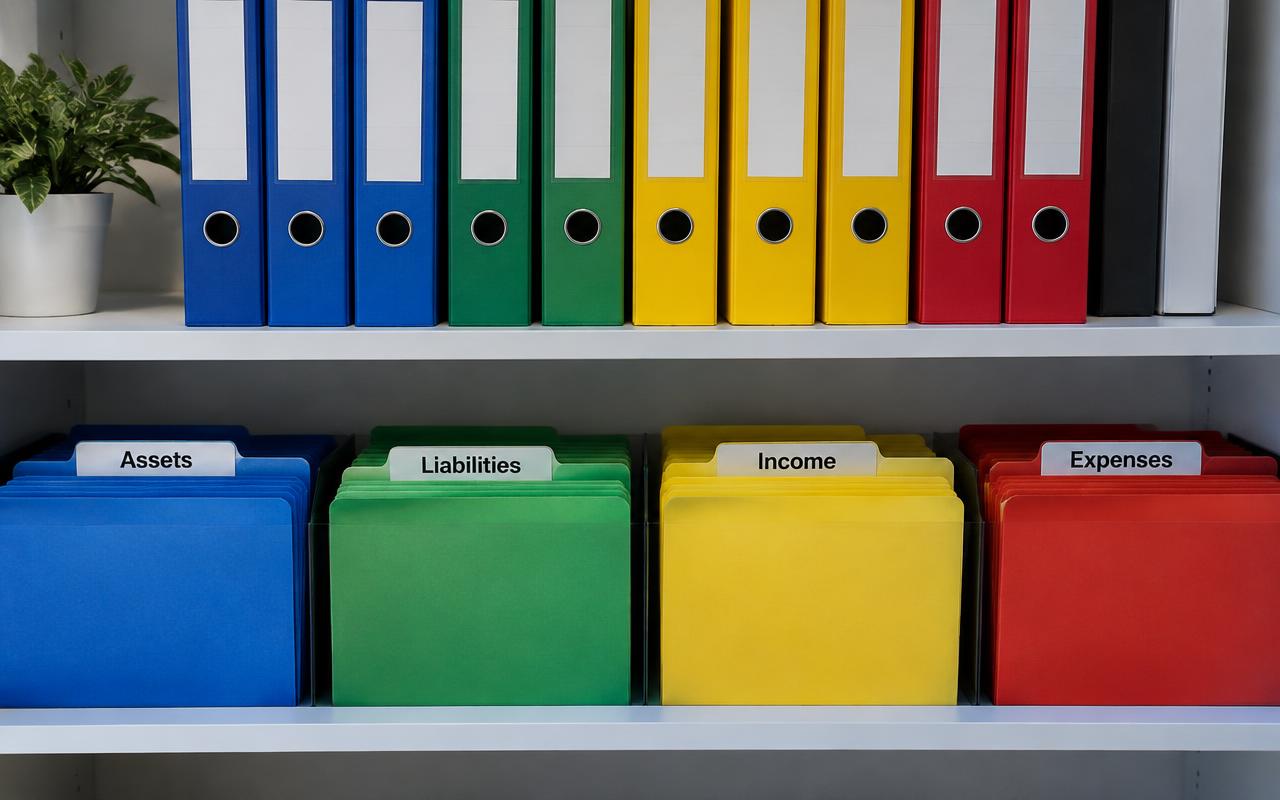
Chart of Accounts: Complete Setup Guide
A well-built chart of accounts is the backbone of accurate books. Here's how to set one up correctly from the start, with real-world examples.
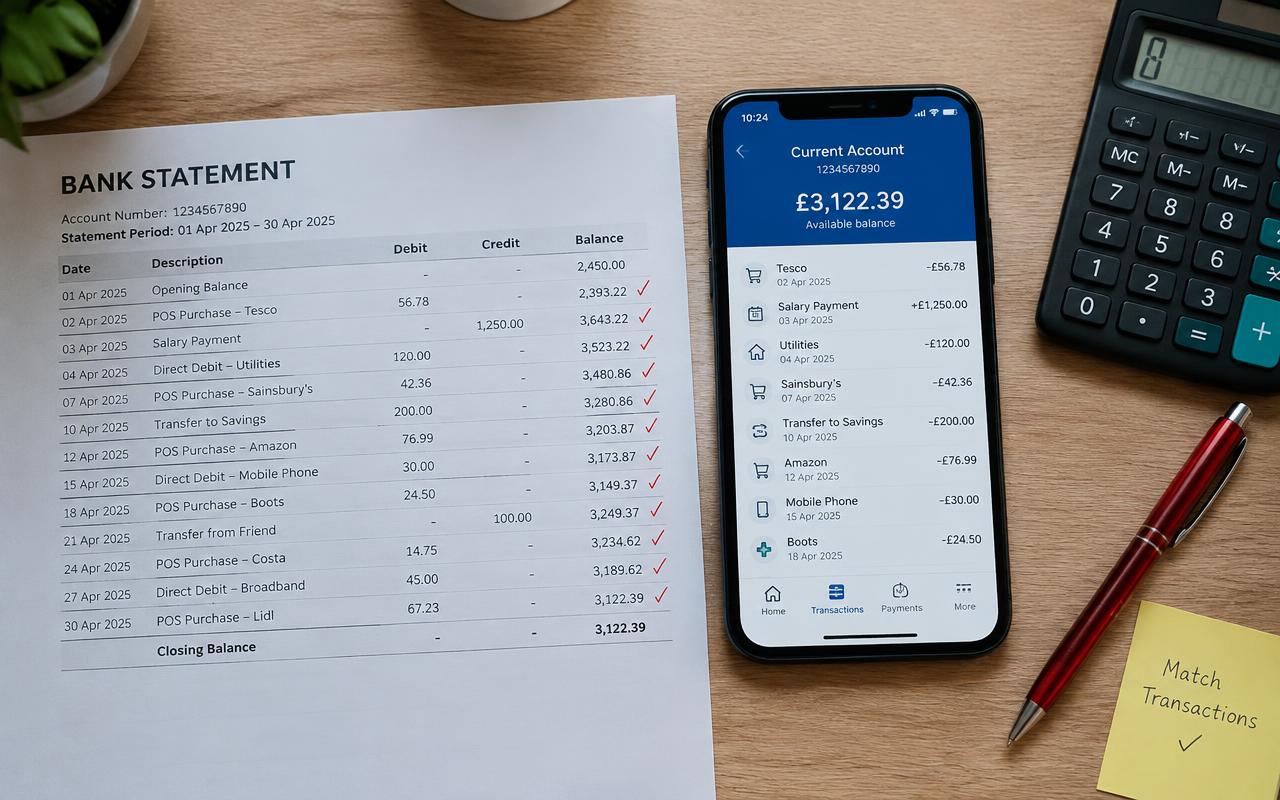
Bank Reconciliation: A Step-by-Step Guide
Bank reconciliation is the single best habit you can build to catch errors, fraud, and missing transactions before they become a real problem.